How to Build an AI Chatbot for WhatsApp in Waptoz
Add an AI agent to WhatsApp that replies to customers on its own. Set its persona, guardrails, allowed actions, behaviour and human handoff in Waptoz.
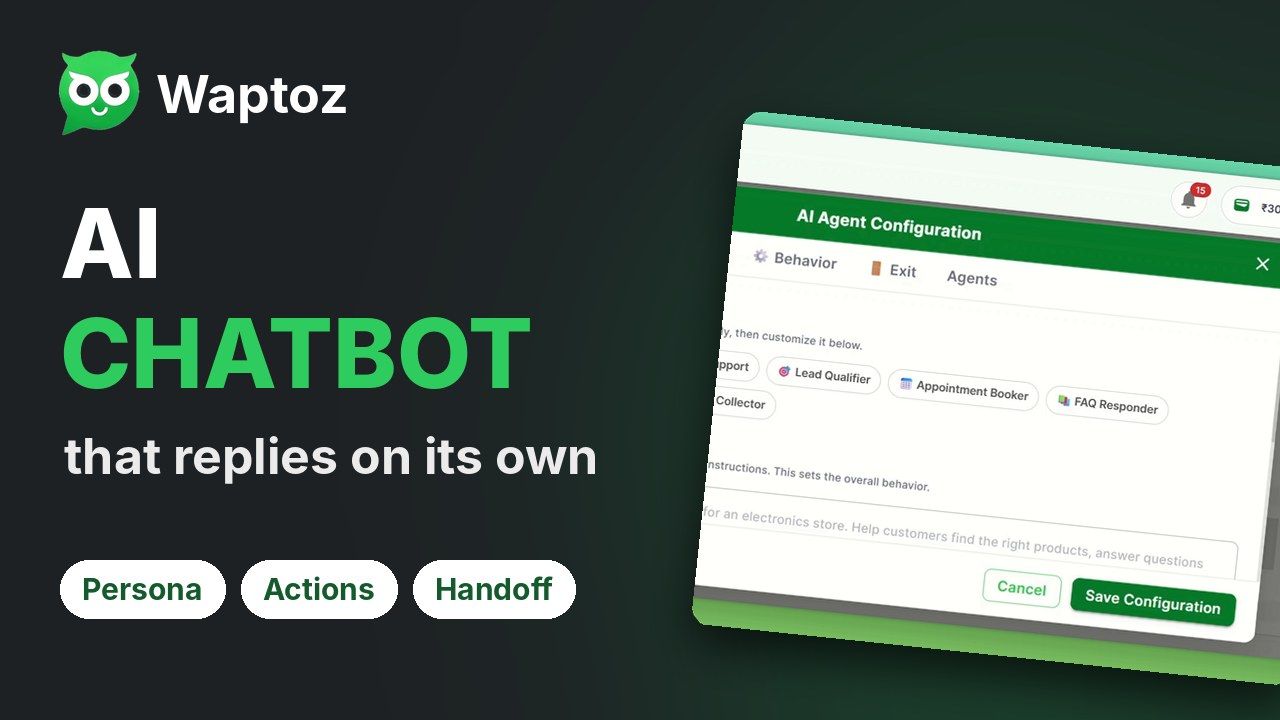
A regular chatbot follows a fixed path of buttons and menus. An AI chatbot understands what a customer types in their own words, like "do you deliver to Noida?" or "which plan is cheapest?", and replies naturally. When it isn't sure, it hands the chat to your team.
In Waptoz, the AI is a block you add to a flow, so you stay in control of what it can say and do.
[Embed video:
Prefer Hindi? Watch this video in Hindi.
Add the AI Agent
- Open Chat Bot, click Create Flow, name it and click Submit.
- In Flow Start, type a keyword like "hi" and press Enter.
- From the Action panel, open AI and drag an AI Agent onto the canvas.
- Connect it to Flow Start and click Configure Agent.
Persona: who the AI is
Pick a ready-made persona, such as Sales Assistant, Customer Support or Lead Qualifier, or write your own system prompt. Describe the AI's role, its tone, and what it should help with. For example: "You are a friendly assistant for an electronics store. Help customers find the right product and answer questions about price and delivery."
Guardrails: what it must never do
Use presets like Pricing Safety or Data Privacy, or write your own rules, such as "never promise discounts" or "never share internal codes". This keeps the AI on-brand and out of trouble.
Actions: what it's allowed to do
- Contact actions: add tags, or update contact details.
- Routing: hand the chat to a human, move to another flow, assign a team, or end the conversation.
- External systems: call an API, send media, templates, products or lists, or trigger a webhook.
Behaviour: how it talks
| Setting | What it controls |
|---|---|
| Max Conversation Turns | Ends the chat after a set number of replies, to prevent loops |
| Confidence Threshold | How sure the AI must be before it replies |
| Temperature | Lower is more precise, higher is more creative |
| Delay | A short pause before replying, so it feels natural |
| Re-initiate | When the AI follows up if the customer goes quiet |
Exit: when to hand over
Choose what happens when the AI isn't confident: move to the next step, or hand off to a human agent. Write a fallback message, and add exit keywords like "stop" or "agent" so customers can leave the AI any time. Under Agents, pick which team members can take over.
Save the configuration, then click Save Flow.
Tips for a reliable AI agent
- Keep the system prompt specific to your business. Vague prompts give vague answers.
- Start with a higher confidence threshold and hand off more often, then relax it as you trust the answers.
- Always offer a way to reach a person. Customers stay happier when they know they can.
Next: How to create WhatsApp templates with AI →
Questions or want a demo? WhatsApp us on +91 94122 28864.
Ready to Automate WhatsApp for Your Business?
Shared inbox, official Meta Cloud API campaigns, and AI workflows — with 0% markup on Meta rates.
Book a Free DemoMore from the World of Waptoz
What Is Waptoz? The WhatsApp Business Platform for Growing Brands
Waptoz is a WhatsApp Business CRM built on Meta's official Cloud API: shared inbox, broadcasts, chatbots, AI replies, Shopify automation and Click-to-WhatsApp ads.
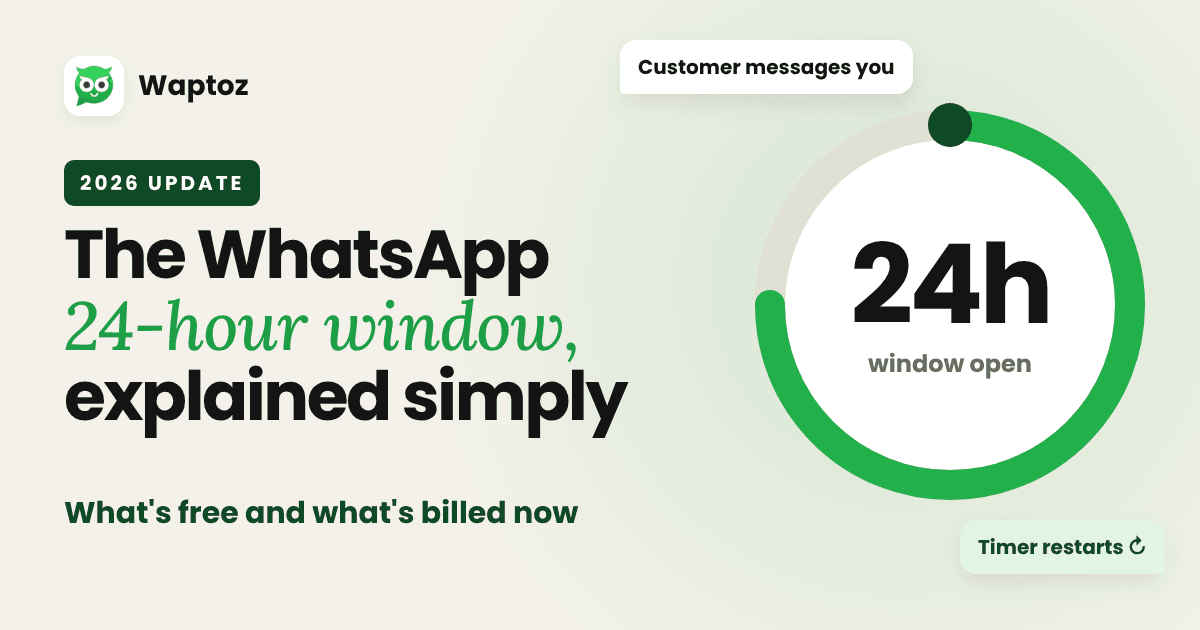
The WhatsApp 24-hour window, explained simply (2026 update)
How the WhatsApp 24-hour customer service window works, what is free and what is billed after Meta's 1 October 2026 pricing change, and how to keep costs predictable.
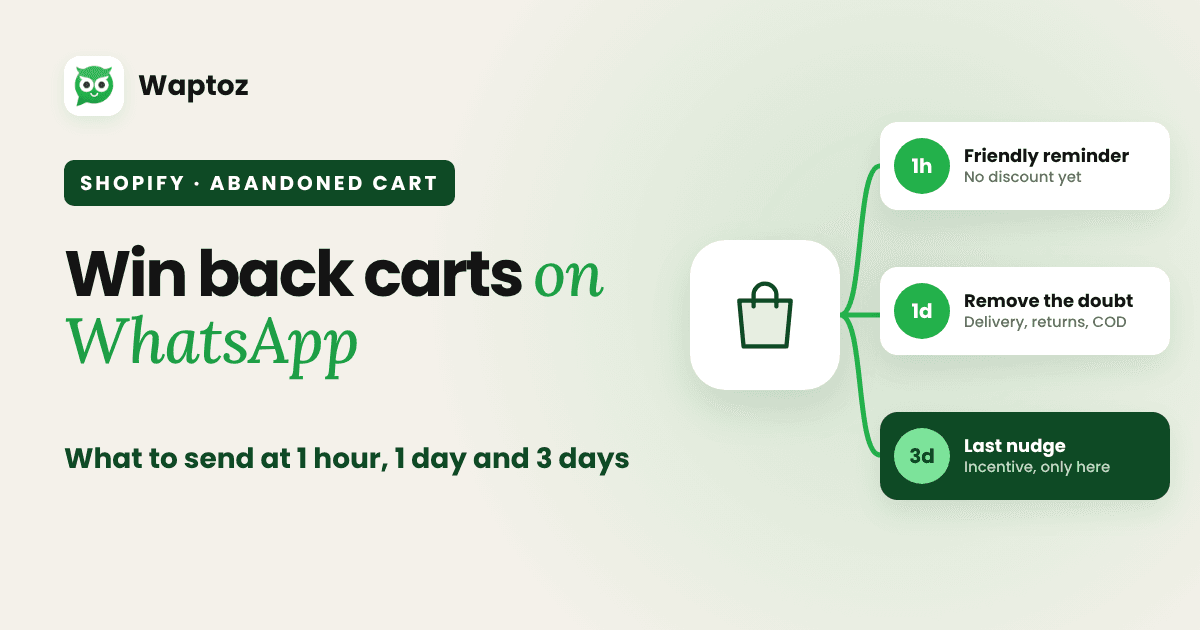
Shopify abandoned cart on WhatsApp: what to send at 1 hour, 1 day and 3 days
A 3-message WhatsApp abandoned cart sequence for Shopify stores: what to send at 1 hour, 1 day and 3 days, with example copy and the rules to follow.