Waptoz Chatbot Flow Builder: Every Block Explained
uild a no-code WhatsApp chatbot in Waptoz. A complete guide to every block: buttons, lists, products, templates, questions, API requests, conditions, tags and handoff.
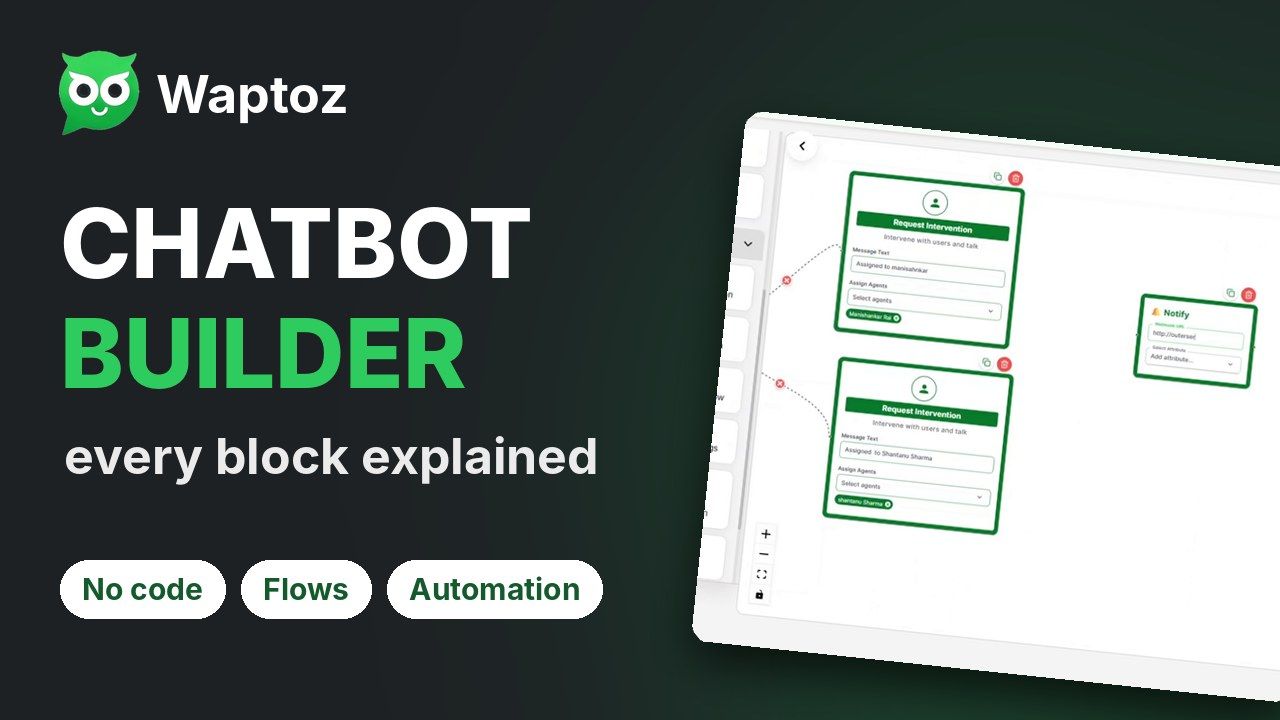
A WhatsApp chatbot answers common questions, shows your products and collects details 24 hours a day, so your team only steps in when a real person is needed. In Waptoz you build one by dragging blocks onto a canvas and joining them up, with no coding.
This is the longest video in the series, because it covers every block in the flow builder. Use the chapters on YouTube to jump to the block you need.
[Embed video: [
Prefer Hindi? Watch this video in Hindi.
Start a flow
Open Chat Bot and click Create Flow, name it and click Submit. Every flow begins with a Flow Start block. Type the keywords that should start it, such as "hi", and press Enter. You can also choose a template to send first, and a message for when a session expires.
Join blocks by dragging a line from one block to the next.
Message blocks: what the customer sees
| Block | What it does |
|---|---|
| Text Button | A message with tap-able buttons, like "Proceed" |
| Text Message | A plain text reply |
| Media Button | An image, video or document with buttons below it |
| List | A menu of options, grouped into sections |
| Multi Product | Several products from your catalogue at once |
| Single Product | One product with its price |
| Template | An approved WhatsApp template, with variables filled from contact details |
| Catalog | Your full WhatsApp product catalogue |
| Dynamic List | A list built from data, such as an API response |
| Meta Flow | A WhatsApp form built with Meta Flows |
Question blocks: collect details
- Ask Address and Ask Location save the customer's address or map location.
- Ask Question asks anything and saves the answer to a contact field.
- Ask Media asks for a photo or file, with a set number of attempts and an error message.
Logic and action blocks: decide and do
- Condition checks a value, like a date or field, and splits the flow into true and false paths.
- API Request talks to your other systems and saves the response for later in the flow.
- Connect Flow jumps to another flow you've built.
- Manage Attributes and Manage Tags update the contact automatically, for example tagging everyone who picks "Pricing".
- Tag Filter sends contacts down different paths based on their tags.
- Request Intervention hands the chat to your team and assigns agents.
- Notify sends an alert, such as a webhook, when a customer reaches that step.
Click Save Flow when you're done.
A simple first flow to build
- Flow Start, triggered by "hi".
- A List: Products, Order status, Talk to us.
- Products leads to Multi Product. Order status leads to Ask Question (order ID) and then API Request. Talk to us leads to Request Intervention.
That one flow handles most of the questions your team answers every day.
Next: How to build an AI chatbot for WhatsApp →
Questions or want a demo? WhatsApp us on +91 94122 28864.
Ready to Automate WhatsApp for Your Business?
Shared inbox, official Meta Cloud API campaigns, and AI workflows — with 0% markup on Meta rates.
Book a Free DemoMore from the World of Waptoz
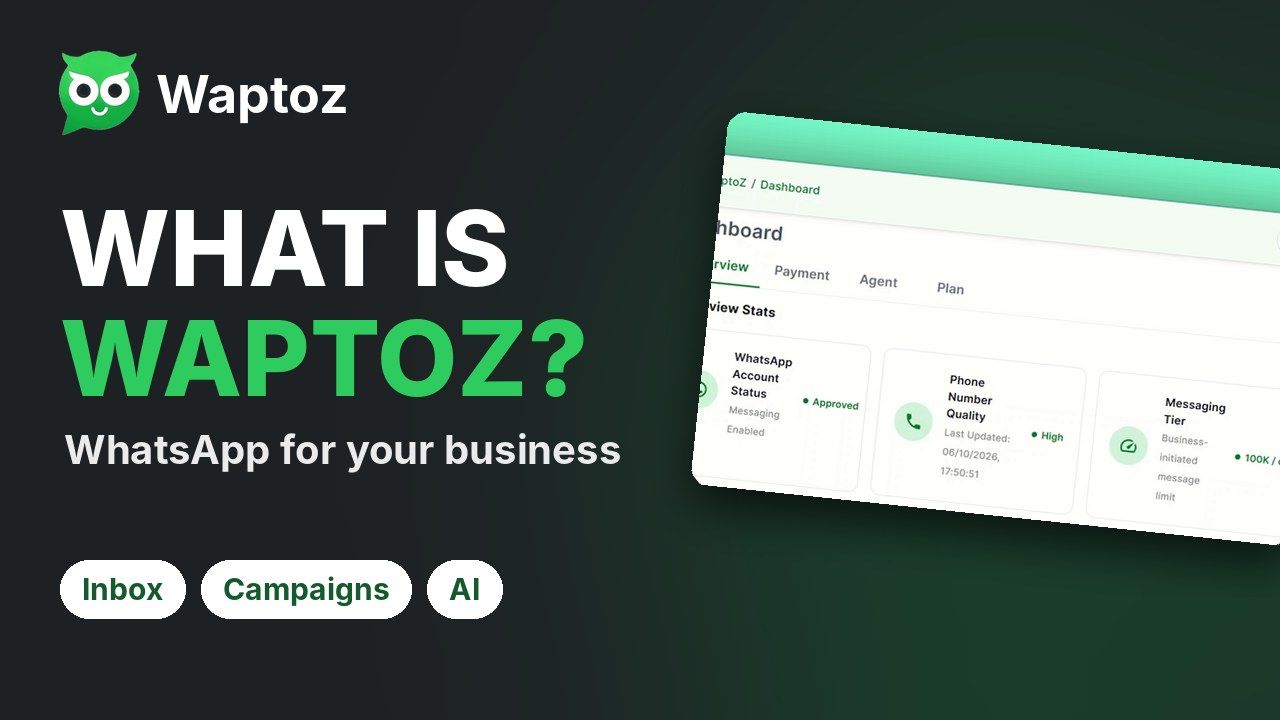
What Is Waptoz? The WhatsApp Business Platform for Growing Brands
Waptoz is a WhatsApp Business CRM built on Meta's official Cloud API: shared inbox, broadcasts, chatbots, AI replies, Shopify automation and Click-to-WhatsApp ads.
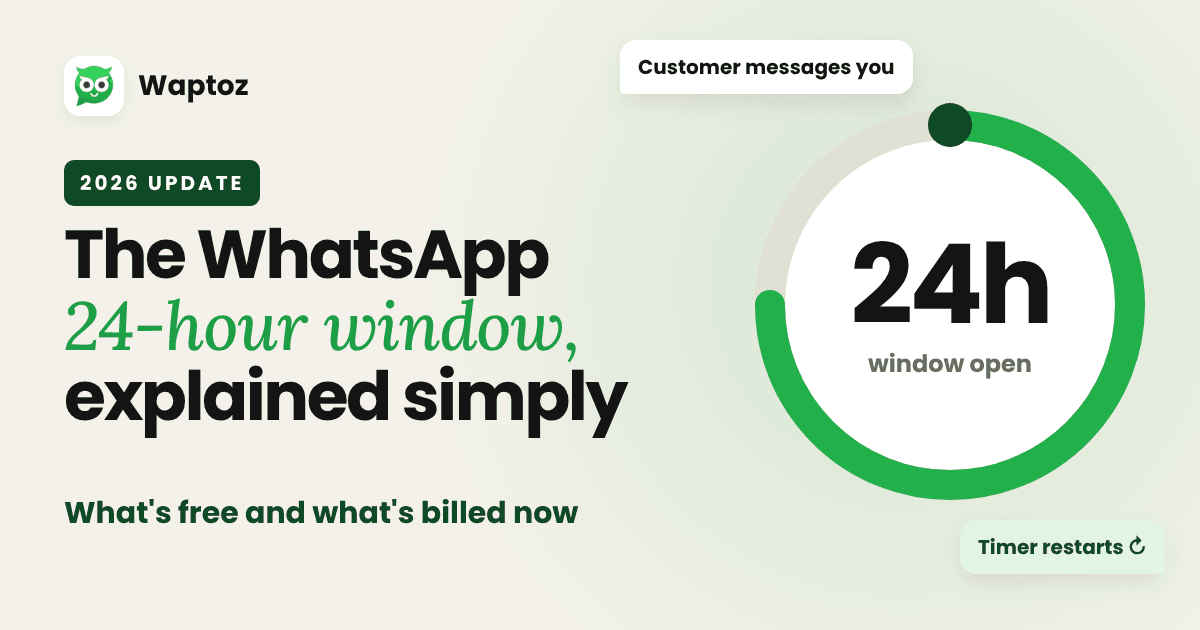
The WhatsApp 24-hour window, explained simply (2026 update)
How the WhatsApp 24-hour customer service window works, what is free and what is billed after Meta's 1 October 2026 pricing change, and how to keep costs predictable.
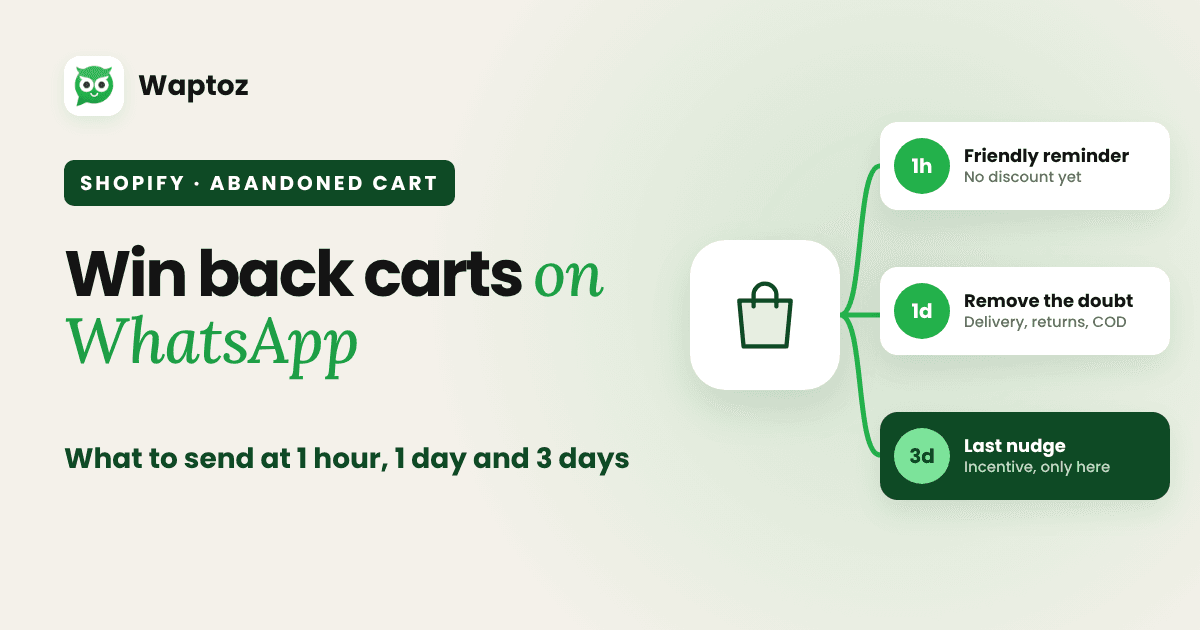
Shopify abandoned cart on WhatsApp: what to send at 1 hour, 1 day and 3 days
A 3-message WhatsApp abandoned cart sequence for Shopify stores: what to send at 1 hour, 1 day and 3 days, with example copy and the rules to follow.