How to Manage WhatsApp Contacts in Waptoz (Tags, Import, Follow-ups)
Add, tag, filter, import and export your WhatsApp contacts in Waptoz, set follow-up reminders, and block or unblock numbers. Step-by-step video guide.
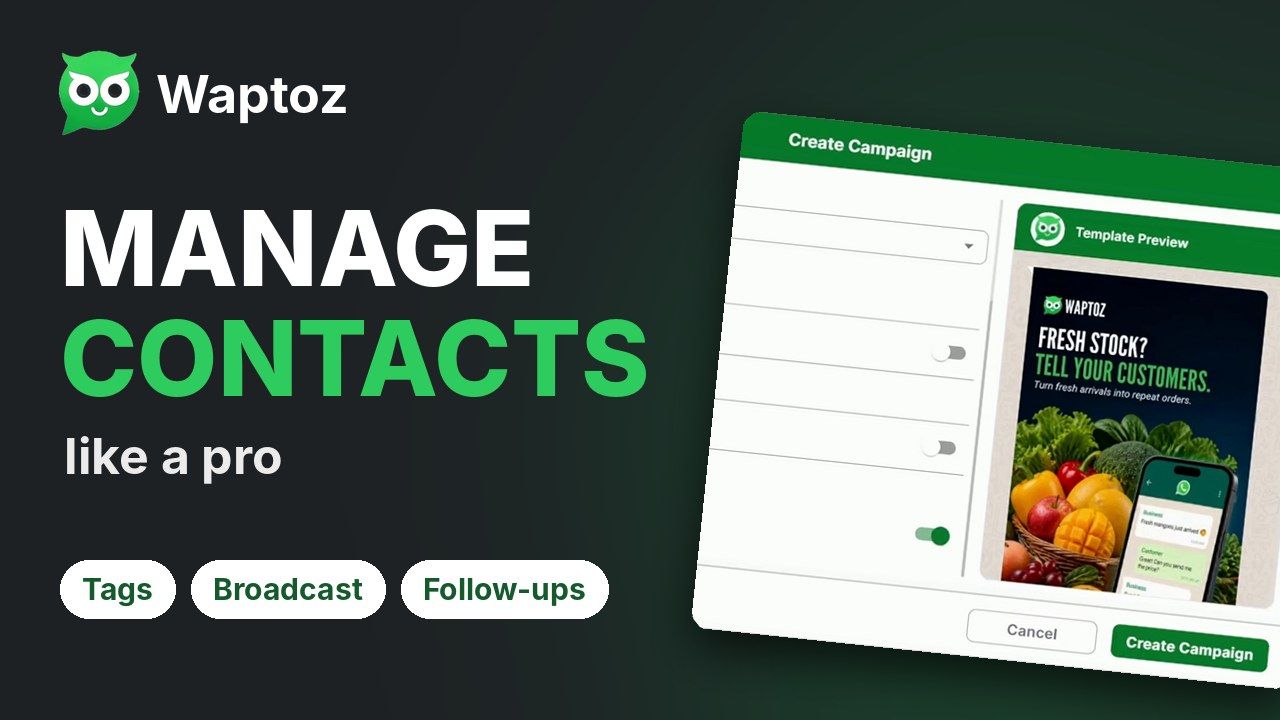
Every campaign, chatbot and follow-up in Waptoz starts with your contact list. A tidy list, with the right tags, means you can message exactly the right people, like only your hot leads or only customers from last month's sale.
This video walks through the Contacts page from top to bottom.
[Embed video:
Prefer Hindi? Watch this video in Hindi.
Filter contacts with tags
The tags on the left of the Contacts page work as quick filters. Tick one tag, or several, to see only those contacts. For example, ticking Hot, Warm and Cold together shows all your active leads in one list.
Add or edit a contact
- Click Add Contact.
- Enter the name and phone number. Waptoz checks the number as you type and warns you if it's too short.
- Add where the contact came from, their date of birth, tags, and whether they've agreed to receive messages.
- Fill in any custom attributes, the extra fields you set up for your own business.
- Click Save Contact.
To change a contact later, click the pencil icon on their row, update the details and click Update Contact.
Sort, filter and choose columns
Every column has its own menu. Use it to sort A to Z, filter (for example, Name contains "Vishal"), or Manage columns to show only the fields you need.
Send a broadcast from your contact list
Select contacts, or tick a tag, and the Broadcast button turns on. Click it and the campaign window opens with your audience already filled in. You can send to the contacts on the current page, or click Select All to include everyone.
Import and export contacts
Open Import, download the sample CSV to see the format (name, phone, tags and country code), then drop in your CSV or Excel file. Import History shows how many contacts were added, updated or skipped in each upload. To download your whole list, use Actions → Export Contacts.
Tag contacts and set follow-ups
- Manage Tags: select a contact, open Actions, and add or create tags. When creating a new tag, press Enter after typing the name, or it won't be added.
- Add Follow-ups: pick a date and time, and Waptoz can send the customer a WhatsApp template automatically. Add a remark so your team knows what the follow-up is about.
Block and unblock numbers
Select a contact, open Actions and click Block to stop messages from that number. To find blocked contacts again, open the filter, set Incoming Blocked to Yes, and unblock them from the same menu.
Next: How to create a WhatsApp broadcast campaign →
Questions or want a demo? WhatsApp us on +91 94122 28864.
Ready to Automate WhatsApp for Your Business?
Shared inbox, official Meta Cloud API campaigns, and AI workflows — with 0% markup on Meta rates.
Book a Free DemoMore from the World of Waptoz
What Is Waptoz? The WhatsApp Business Platform for Growing Brands
Waptoz is a WhatsApp Business CRM built on Meta's official Cloud API: shared inbox, broadcasts, chatbots, AI replies, Shopify automation and Click-to-WhatsApp ads.
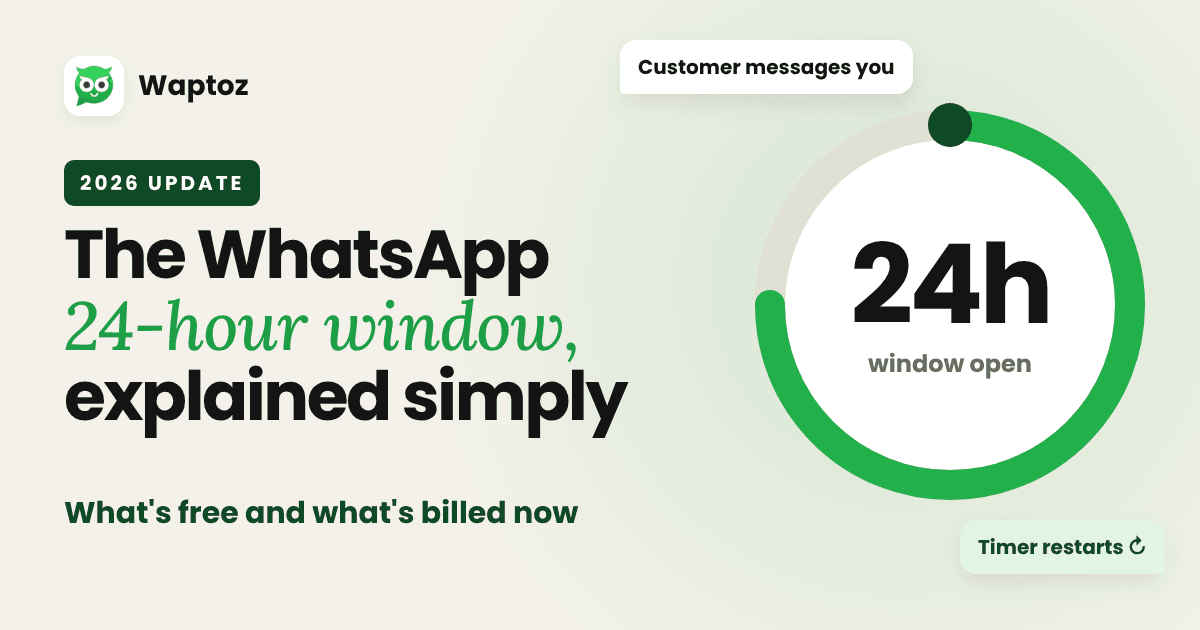
The WhatsApp 24-hour window, explained simply (2026 update)
How the WhatsApp 24-hour customer service window works, what is free and what is billed after Meta's 1 October 2026 pricing change, and how to keep costs predictable.
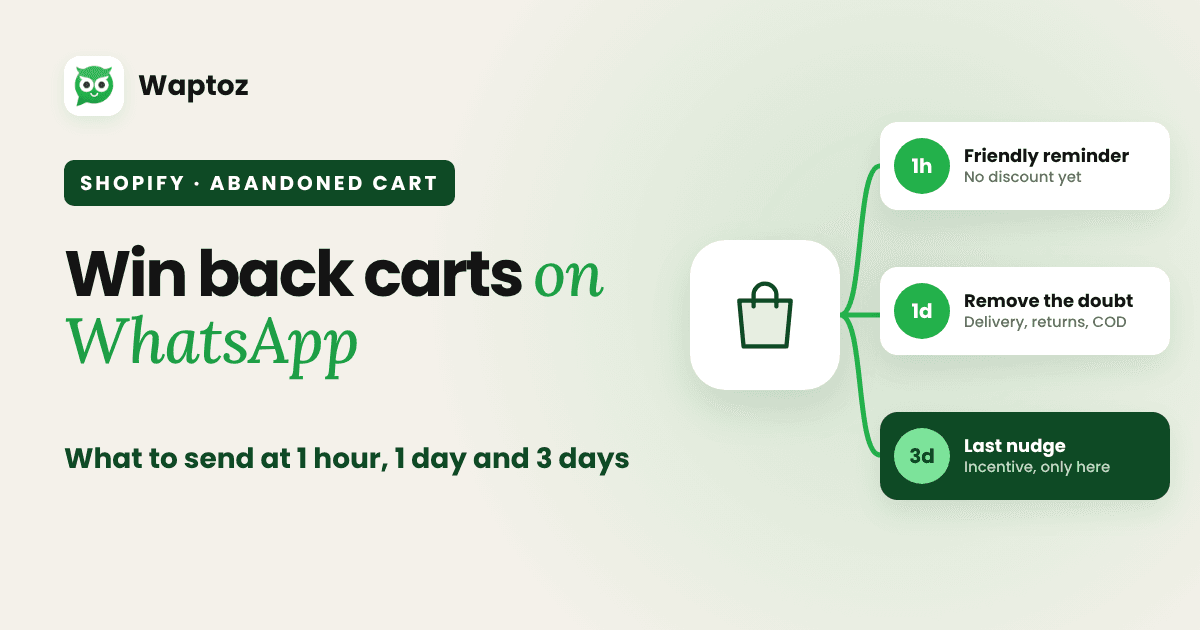
Shopify abandoned cart on WhatsApp: what to send at 1 hour, 1 day and 3 days
A 3-message WhatsApp abandoned cart sequence for Shopify stores: what to send at 1 hour, 1 day and 3 days, with example copy and the rules to follow.