How to Create a WhatsApp Broadcast Campaign in Waptoz
Send a WhatsApp broadcast to hundreds of customers with Waptoz: pick contacts, choose an approved template, schedule it or make it recurring.
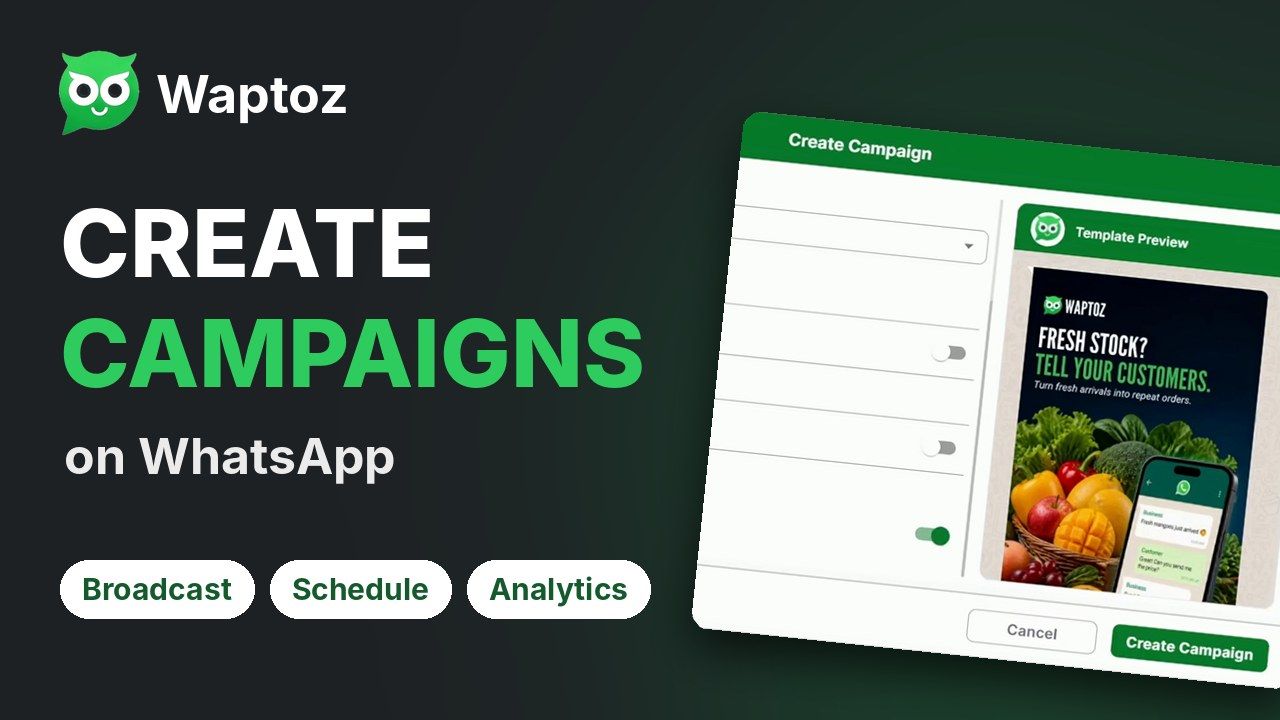
A broadcast campaign sends one WhatsApp message to many customers at once: a sale announcement, a reminder, or a new product launch. Because WhatsApp messages get read far more than emails, a well-timed broadcast is one of the fastest ways to bring customers back.
In Waptoz, a campaign takes three steps: choose who gets it, choose the message, and choose when it goes out.
[Embed video: [
Prefer Hindi? Watch this video in Hindi.
Choose a campaign type
Open Campaign and click Create Campaign. You'll see four types:
- Broadcast: one message to contacts you pick in Waptoz.
- CSV Broadcast: one message to a list you upload as a file.
- QR campaign: customers scan a QR code to start a chat with you.
- API campaign: messages triggered from your own software.
This guide uses Broadcast.
Step 1: Name the campaign and pick contacts
Search for contacts by name and tick them, or pick a tag (for example, everyone tagged "Camp One") and click Select All. Then name the campaign. Spaces aren't allowed in the name, so use an underscore instead (for example, diwali_sale).
Step 2: Choose a template
WhatsApp only lets businesses start conversations with approved templates. Pick one of your approved templates from the list. If it has an image, click Add Media and choose one from your library or upload a new one. The preview on the right shows exactly what customers will see.
Step 3: Schedule and launch
You'll see how many contacts will receive the message. Then decide:
- Send now, or turn on Schedule for Later and pick a date and time.
- Include Opt-out Audience: whether contacts who opted out should also get it. Leave this off unless you have a clear reason.
- Recurring Campaign: repeat the message daily, weekly, monthly or on a custom schedule. Useful for weekly offers or monthly reminders.
Click Finish. Your campaign appears at the top of the Campaign List.
Tips for better results
- Send to a tag, not your whole list. A relevant message to 200 people beats a generic one to 5,000.
- Schedule for when your customers are free, like evenings for retail and mornings for B2B.
- Use an image. Templates with a clear product photo usually get more replies.
Next: Campaign analytics: track sent, delivered, read and failed messages →
Questions or want a demo? WhatsApp us on +91 94122 28864.
Ready to Automate WhatsApp for Your Business?
Shared inbox, official Meta Cloud API campaigns, and AI workflows — with 0% markup on Meta rates.
Book a Free DemoMore from the World of Waptoz
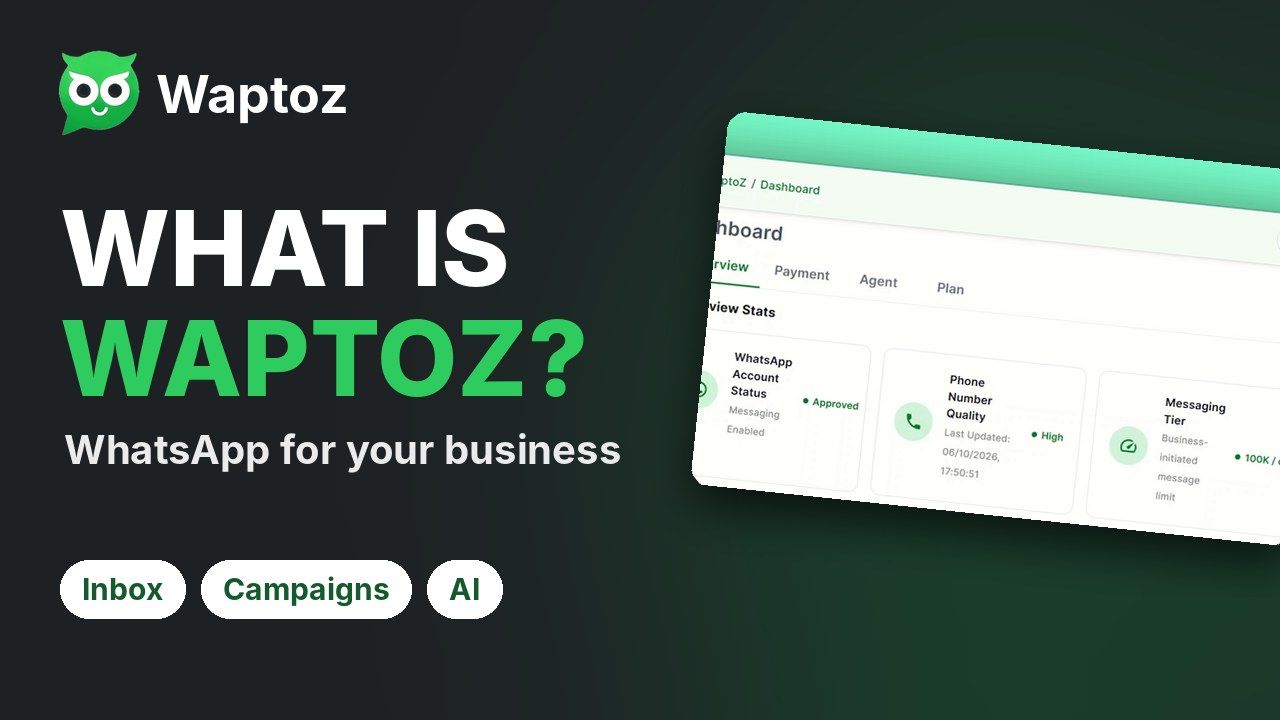
What Is Waptoz? The WhatsApp Business Platform for Growing Brands
Waptoz is a WhatsApp Business CRM built on Meta's official Cloud API: shared inbox, broadcasts, chatbots, AI replies, Shopify automation and Click-to-WhatsApp ads.
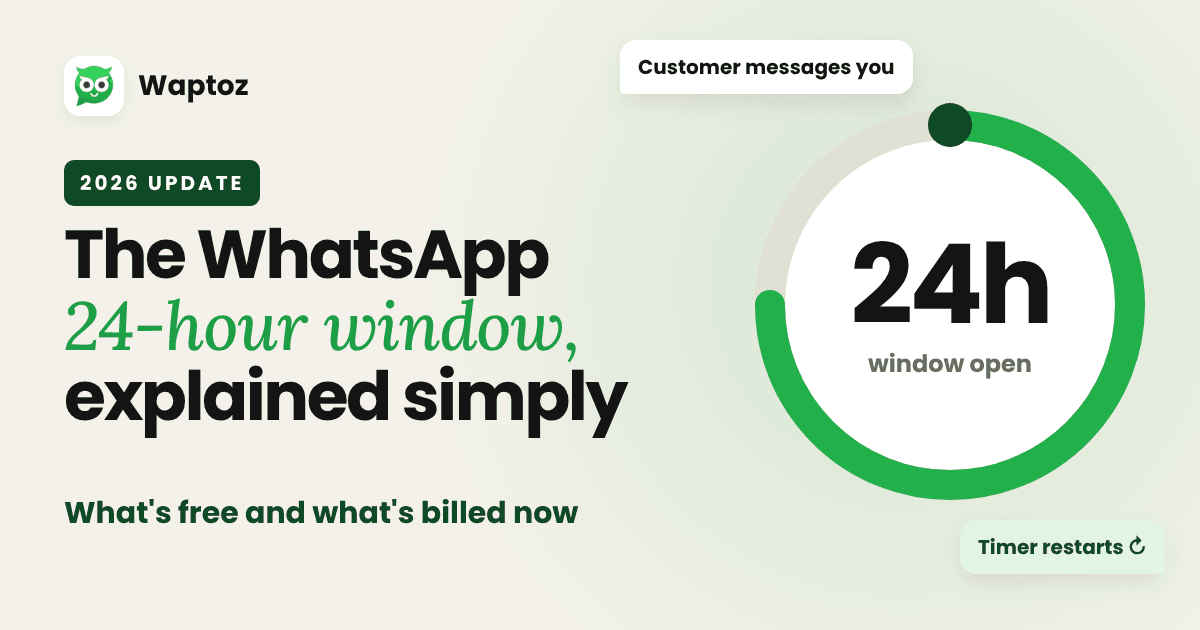
The WhatsApp 24-hour window, explained simply (2026 update)
How the WhatsApp 24-hour customer service window works, what is free and what is billed after Meta's 1 October 2026 pricing change, and how to keep costs predictable.
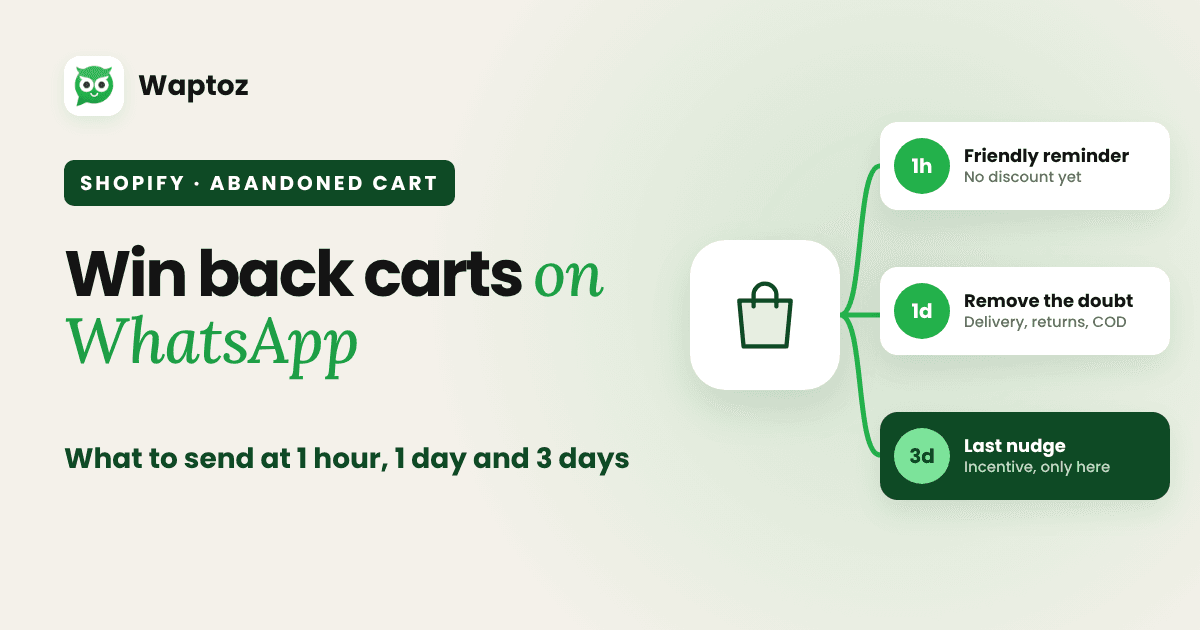
Shopify abandoned cart on WhatsApp: what to send at 1 hour, 1 day and 3 days
A 3-message WhatsApp abandoned cart sequence for Shopify stores: what to send at 1 hour, 1 day and 3 days, with example copy and the rules to follow.