How to Connect Shopify to Waptoz for WhatsApp Order Alerts and Abandoned Carts
Connect your Shopify store to Waptoz in minutes and send automatic WhatsApp messages for abandoned carts, COD confirmation and order updates. Two methods.
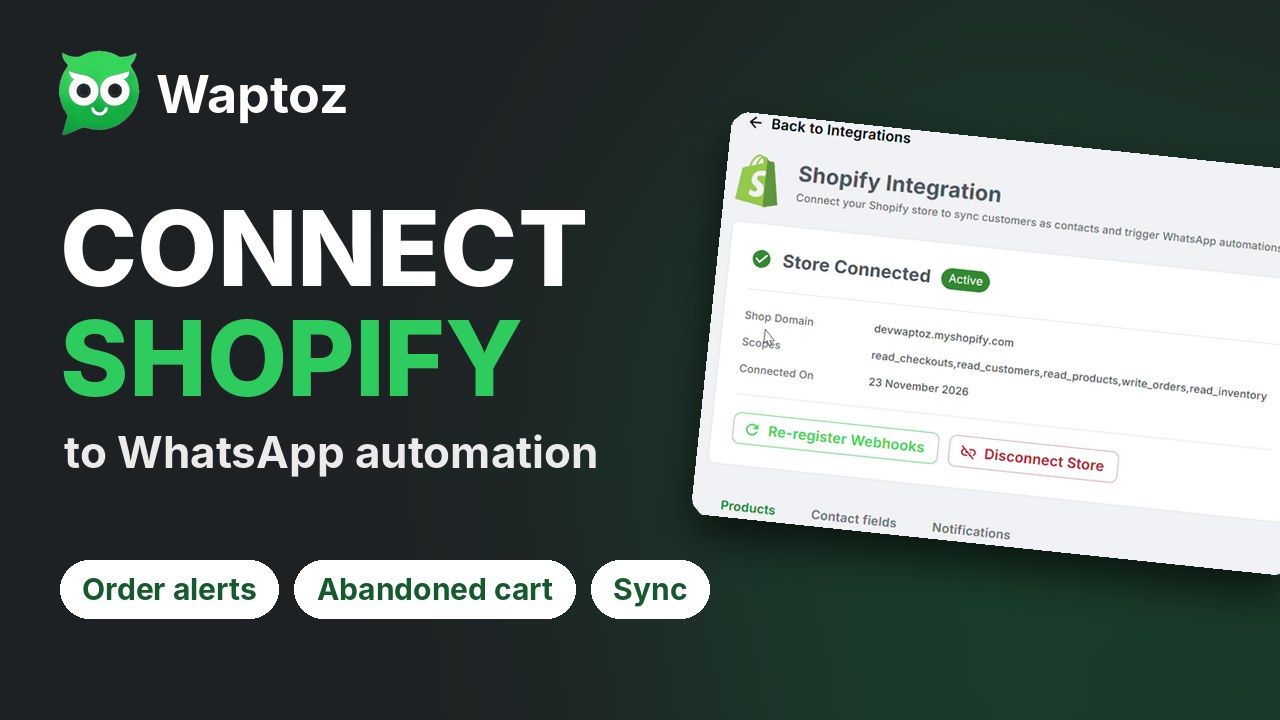
Shoppers abandon carts, forget to confirm cash-on-delivery orders, and wonder where their parcel is. A WhatsApp message at the right moment fixes all three, and with Shopify connected to Waptoz, those messages go out automatically.
There are two ways to connect: from the Waptoz portal, or from inside your Shopify admin. This video shows both.
[Embed video: https://youtu.be/pIENvtNvce0]
Prefer Hindi? Watch this video in Hindi.
Method 1: Connect from the Waptoz portal
- In Waptoz, open Integration from the sidebar.
- On the Shopify card, click Connect and enter your store domain (yourstore.myshopify.com).
- Click Connect with Shopify. Shopify shows the permissions Waptoz needs, such as customers, orders and products. Click Install.
- You're back in Waptoz, with the store shown as connected.
What to set up after connecting
- Products: click Sync Products to send your Shopify products to your WhatsApp catalogue, so customers can browse them in chat.
- Contact fields: choose which order details are saved to each contact, like order ID, total price and customer name.
- Notifications: pick an approved template for each event (abandoned cart, COD confirmation and order updates) and map its variables to order fields. You can also add or remove tags automatically when each event happens.
If messages ever stop going out, click Re-register Webhooks. To unlink the store, click Disconnect Store.
Method 2: Set up from your Shopify admin
- In Shopify, go to Settings → Apps and find Waptoz. Click Install and confirm the permissions.
- Waptoz opens inside your Shopify admin. Sign in with your Waptoz email and password.
- Click Connect on the Waptoz project you want to link to this store.
- Click Configure Templates. Each event (abandoned cart, COD confirmation and order updates) has its own tab, and a tick means a template is already saved.
- Pick a template for each event, map its fields, choose media if needed, and click Save Campaign.
Both methods give the same result. Use whichever is easier for you.
Messages worth turning on first
- Abandoned cart: a reminder an hour or two after checkout is left, often with a small discount.
- COD confirmation: ask the customer to confirm before you ship. This cuts fake orders and returns.
- Order shipped: send the tracking link so customers don't need to ask.
Next: How to run Click-to-WhatsApp ads from Waptoz →
Questions or want a demo? WhatsApp us on +91 94122 28864.
Ready to Automate WhatsApp for Your Business?
Shared inbox, official Meta Cloud API campaigns, and AI workflows — with 0% markup on Meta rates.
Book a Free DemoMore from the World of Waptoz
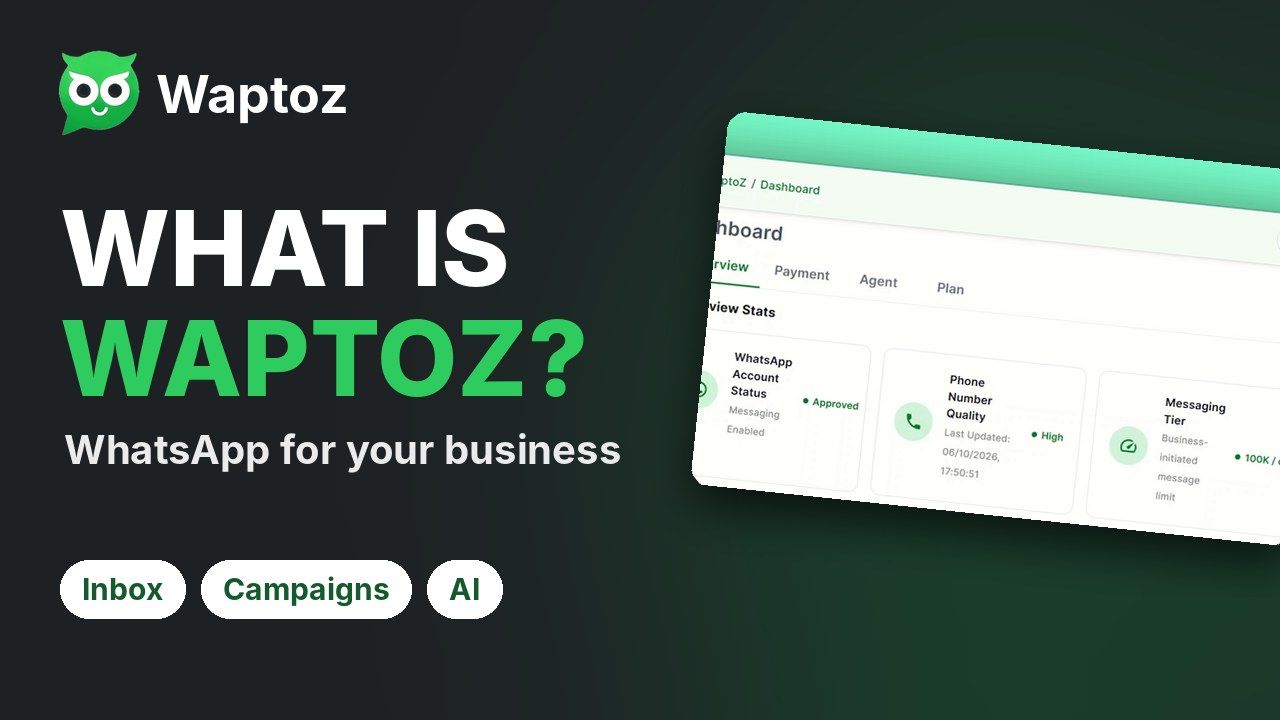
What Is Waptoz? The WhatsApp Business Platform for Growing Brands
Waptoz is a WhatsApp Business CRM built on Meta's official Cloud API: shared inbox, broadcasts, chatbots, AI replies, Shopify automation and Click-to-WhatsApp ads.
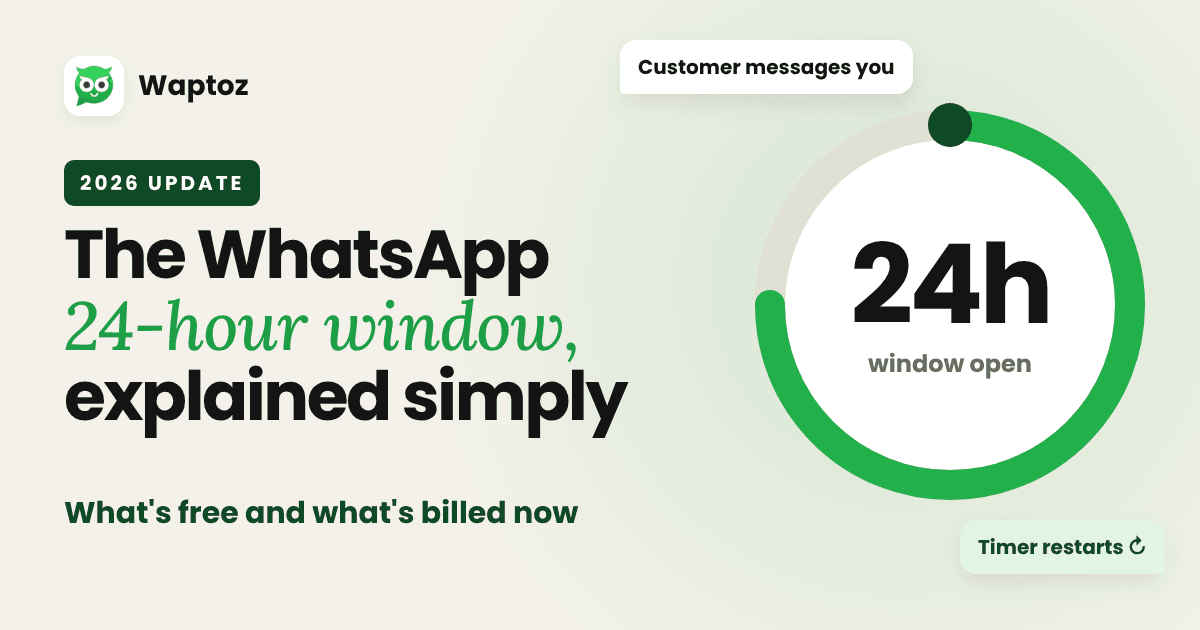
The WhatsApp 24-hour window, explained simply (2026 update)
How the WhatsApp 24-hour customer service window works, what is free and what is billed after Meta's 1 October 2026 pricing change, and how to keep costs predictable.
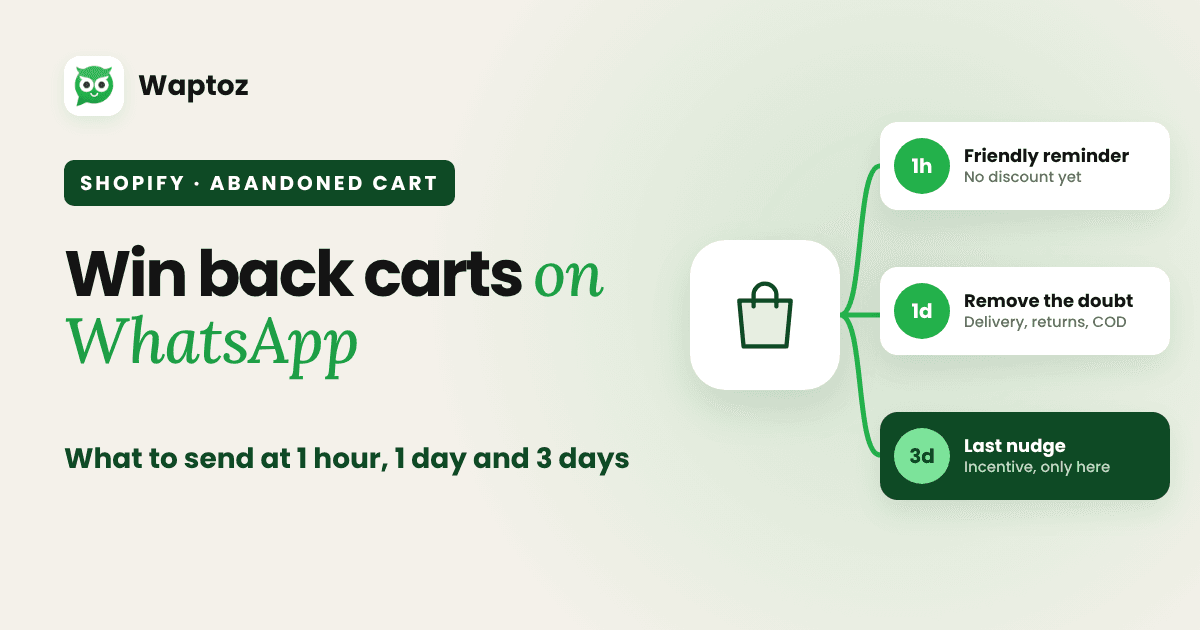
Shopify abandoned cart on WhatsApp: what to send at 1 hour, 1 day and 3 days
A 3-message WhatsApp abandoned cart sequence for Shopify stores: what to send at 1 hour, 1 day and 3 days, with example copy and the rules to follow.