How to Run Click-to-WhatsApp Ads on Facebook and Instagram with Waptoz
Create Click-to-WhatsApp ads for Facebook and Instagram from Waptoz: connect Facebook, set budget and targeting, build the ad, preview it, then activate or pause.
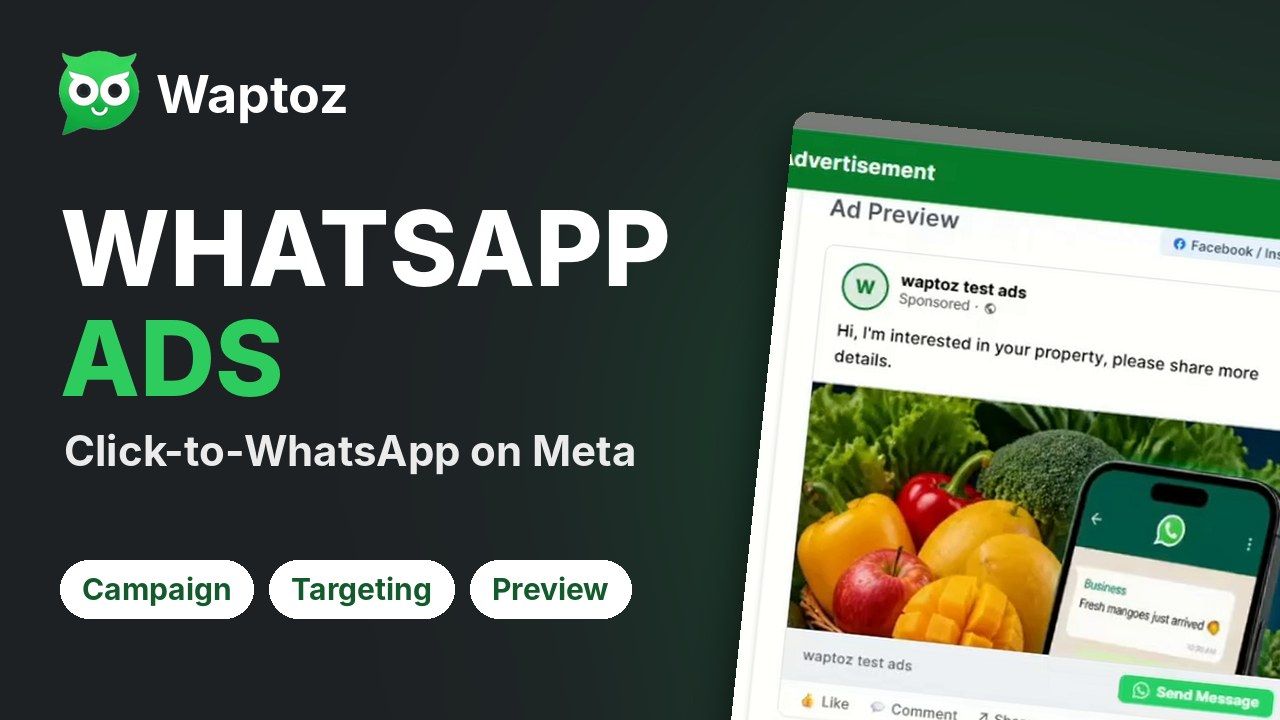
Most ads send people to a website, where many of them leave without doing anything. A Click-to-WhatsApp ad opens a WhatsApp chat with your business instead. The customer sends you a message, and now you have a real conversation and their number.
Waptoz lets you create and manage these ads without opening Meta Ads Manager. This video shows the full setup.
[Embed video:
Prefer Hindi? Watch this video in Hindi.
Before you start: connect Facebook
Open Ads Manager in Waptoz. If your Facebook access needs updating, click Reconnect, confirm your Facebook account, choose the Facebook Page and business to use, and click Save. Back in Waptoz, select your business and click Continue.
Every ad then has three parts: a campaign, an ad set and an ad.
Step 1: Create the campaign
Click Create New Campaign, give it a name and click Create Campaign.
Step 2: Create the ad set (budget and audience)
- Click Create New Ad Set and enter a name and your daily budget in rupees. The goal is already set to conversations, so people message you on WhatsApp.
- Set the age range and genders you want to reach.
- Under Location Targeting, India is selected. Search for cities, such as Gurugram, Mohali or Noida, and set a radius around each.
- Add interests to reach people more likely to buy.
- Choose where the ads appear: Facebook and Instagram, feeds and stories, mobile and desktop.
- Set a start and end date, then click Create Ad Set.
Step 3: Create the ad
- Click Create Ad and give it a name. A live preview appears on the right.
- Choose an image or video, from your library or as a new upload.
- Enter the WhatsApp number customers should message, with the country code.
- Write the message customers will send when they tap the ad, for example "Hi, I'd like to know more about your offer".
- Check the preview and click Submit Ad.
Manage your ads
The Ads Manager list shows every ad with its status and delivery. Click Sync for the latest status from Meta, click the preview icon to see the ad as it appears on Facebook, and use the toggle to turn any ad on or off.
Tips
- Start with a small daily budget and one city, then scale what works.
- Make the pre-filled message specific, so you know which ad each chat came from.
- Reply fast. The first few minutes after someone messages matter most, so pair your ads with a chatbot or AI reply (see Posts 7 and 8).
Next: Chatbot flow builder: every block explained →
Questions or want a demo? WhatsApp us on +91 94122 28864.
Ready to Automate WhatsApp for Your Business?
Shared inbox, official Meta Cloud API campaigns, and AI workflows — with 0% markup on Meta rates.
Book a Free DemoMore from the World of Waptoz
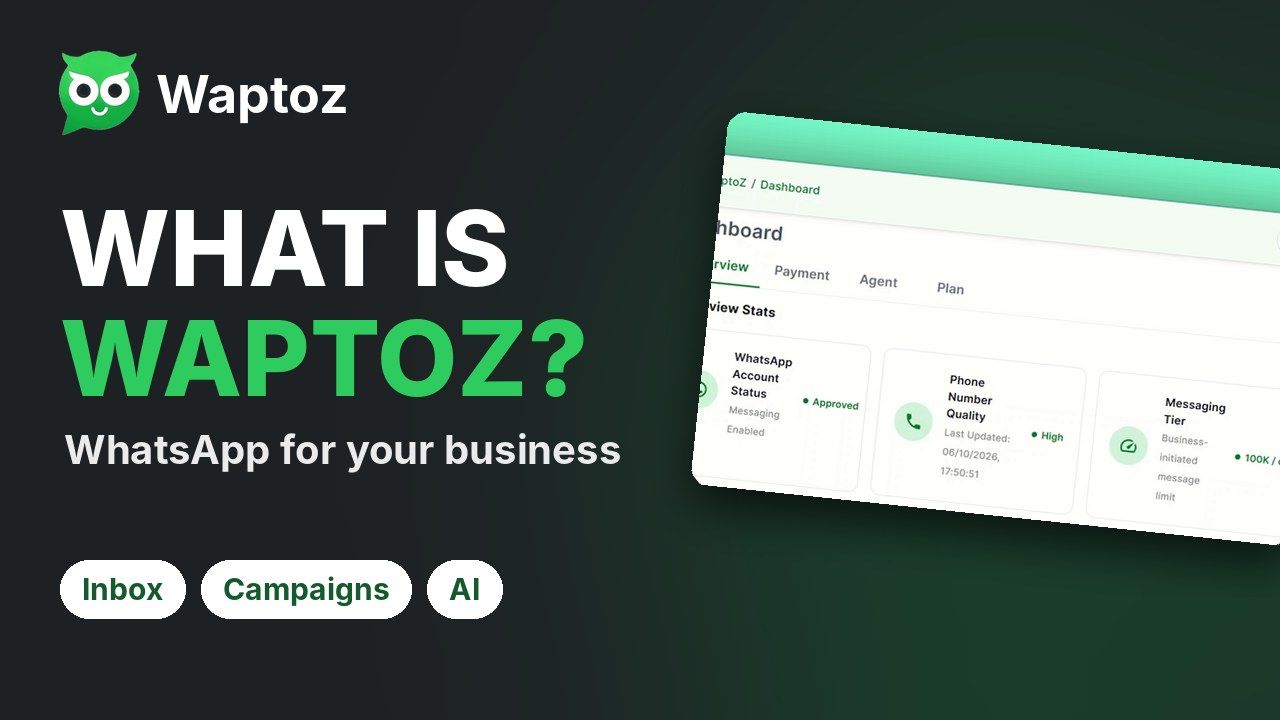
What Is Waptoz? The WhatsApp Business Platform for Growing Brands
Waptoz is a WhatsApp Business CRM built on Meta's official Cloud API: shared inbox, broadcasts, chatbots, AI replies, Shopify automation and Click-to-WhatsApp ads.
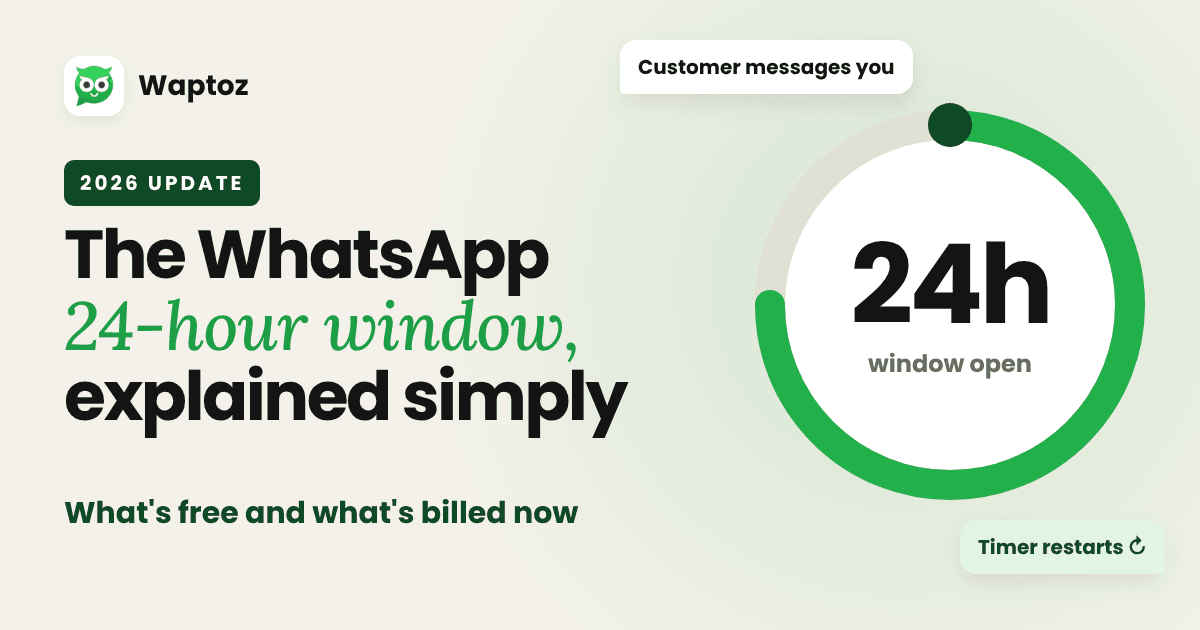
The WhatsApp 24-hour window, explained simply (2026 update)
How the WhatsApp 24-hour customer service window works, what is free and what is billed after Meta's 1 October 2026 pricing change, and how to keep costs predictable.
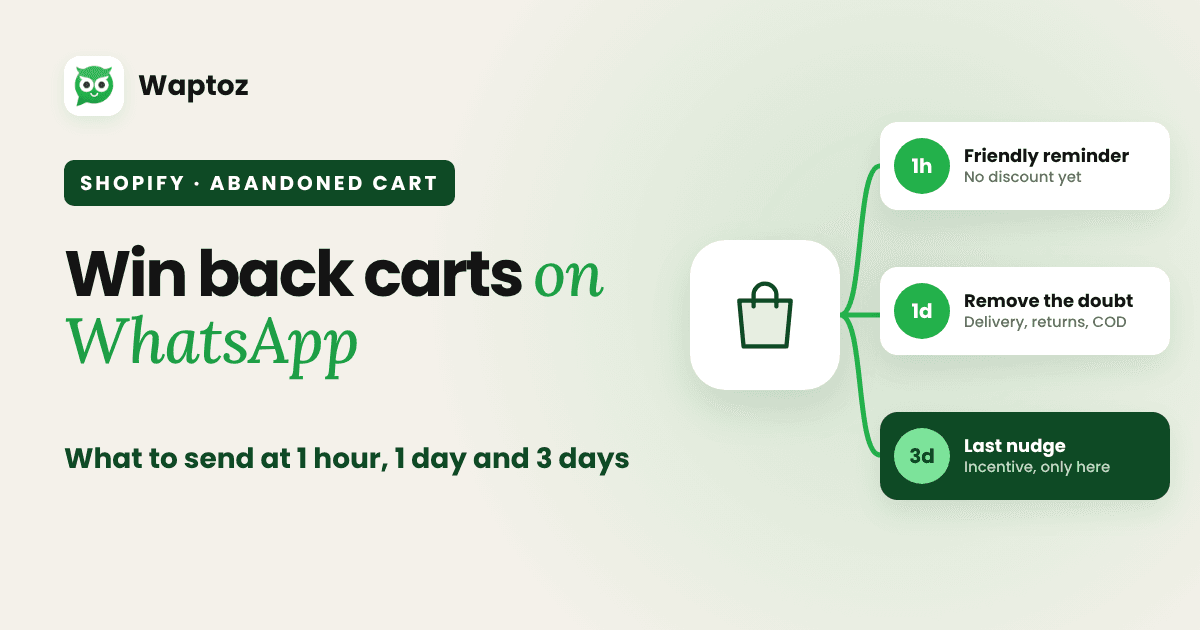
Shopify abandoned cart on WhatsApp: what to send at 1 hour, 1 day and 3 days
A 3-message WhatsApp abandoned cart sequence for Shopify stores: what to send at 1 hour, 1 day and 3 days, with example copy and the rules to follow.